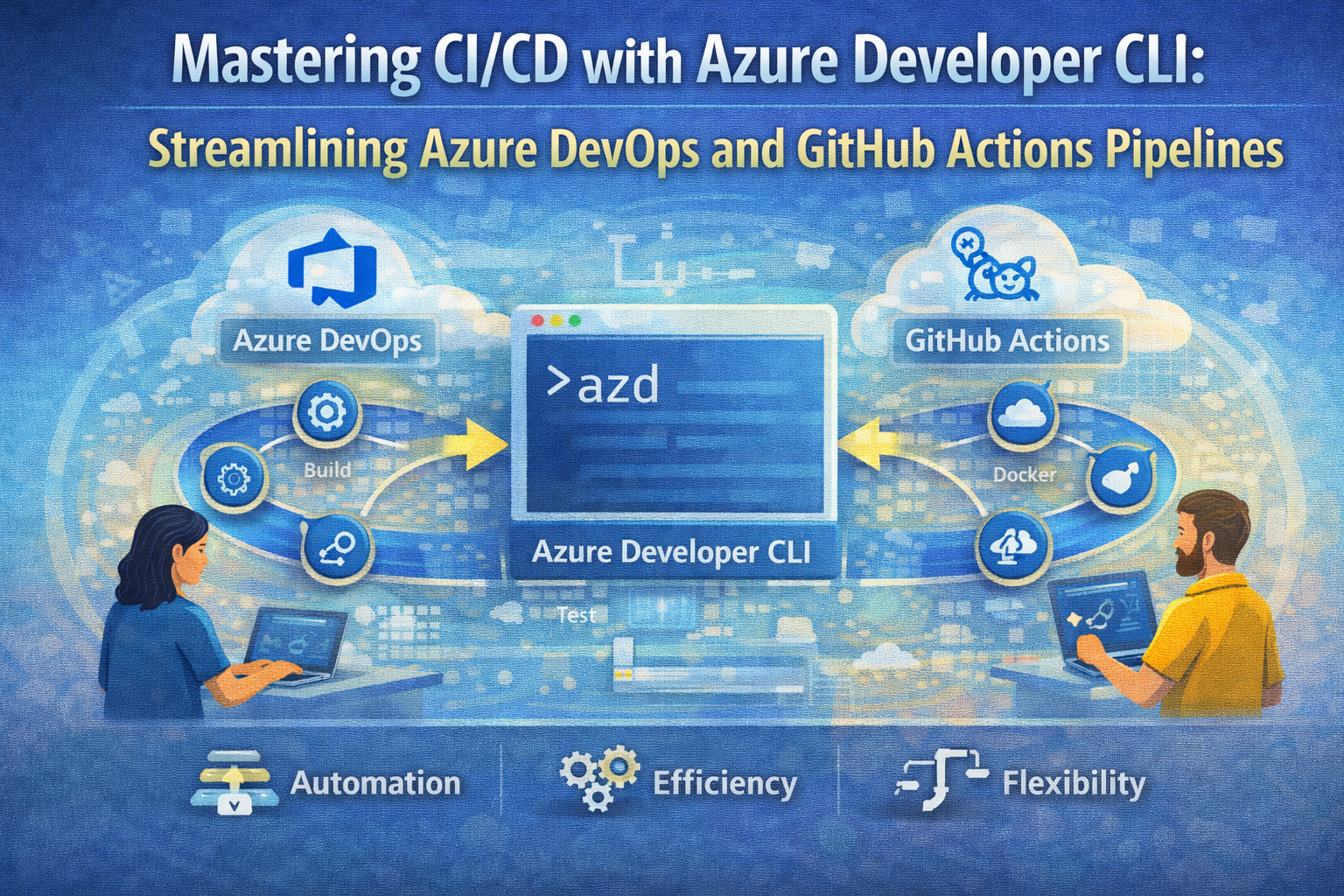
Mastering CI/CD with Azure Developer CLI: Streamlining Azure DevOps and GitHub Actions Pipelines
Continuous Integration and Continuous Deployment (CI/CD) pipelines are fundamental to modern software delivery, ensuring rapid, reliable, and repeatable deployments. Azure Developer CLI (azd) offers an elegant approach to configuring these pipelines, especially when working with Azure DevOps and GitHub Actions. This article dives deep into how azd simplifies CI/CD setup, best practices for leveraging it in real-world projects, and practical examples to get you started quickly.
Introduction to Azure Developer CLI and CI/CD Pipelines
The Azure Developer CLI (azd) is a command-line tool designed to streamline the development lifecycle for Azure applications, including environment provisioning, deployment, and importantly, CI/CD pipeline configuration. Traditionally, setting up pipelines requires manual creation of YAML files, service principals, and handling authentication intricacies. azd abstracts much of this complexity with the azd pipeline config command, automating pipeline provisioning for you.
By integrating pipeline templates directly into your project repositories, azd enables consistent and repeatable CI/CD setups tailored to your project’s requirements.
How azd pipeline config Works
Running azd pipeline config initiates a guided process that configures your repository and Azure resources for CI/CD. Here’s a breakdown of what happens:
- Authentication with Azure: Ensures you are logged in (
az login) and have sufficient permissions to create and manage service principals and resources. - CI/CD Platform Selection: Lets you choose between GitHub Actions or Azure Pipelines based on your repository host and organizational preferences.
- Repository Connection: Connects your local project to the appropriate remote repository, creating one if necessary.
- Service Principal Setup: Creates a secure service principal that the pipeline will use for deployments, reducing manual credential management.
- Authentication Configuration: Depending on the platform:
- GitHub Actions defaults to OpenID Connect (OIDC) for secure, token-based authentication but can fall back to client credentials.
- Azure Pipelines uses client credentials and requires a Personal Access Token (PAT) to integrate securely.
- Pipeline File Provisioning: Copies the relevant
azure-dev.ymlpipeline definition file from the project template to your repository’s CI/CD workflow directory. - Variables and Secrets Configuration: Sets environment variables and secrets in the CI/CD platform securely.
- Commit and Push: Commits pipeline configuration files and pushes them to the remote repository, triggering pipeline runs.
- Pipeline Execution: Automatically provisions or updates Azure resources and deploys your app through the configured pipeline.
This full-cycle automation reduces setup time and mitigates errors caused by manual configuration.
Platform-Specific Pipeline Details
While azd pipeline config supports both GitHub Actions and Azure Pipelines, understanding their differences is key to optimizing your CI/CD workflow.
GitHub Actions
- Repository Host: GitHub repositories.
- Pipeline Location:
.github/workflows/azure-dev.yml. - Authentication: Supports OpenID Connect (OIDC) by default, which avoids storing long-lived secrets and enhances security.
- Fallback: Client credentials authentication is available if OIDC cannot be used.
- Advantages: Seamless integration with GitHub ecosystem, native support for pull request workflows, and rich marketplace actions.
Azure Pipelines
- Repository Host: Azure Repos or other Git-supported repositories.
- Pipeline Location:
.azuredevops/pipelines/azure-dev.ymlor.azdo/pipelines/azure-dev.yml. - Authentication: Uses client credentials with a Personal Access Token (PAT) required for repository access.
- Branch Protection: Supports protected main branches, ensuring deployments only occur after pull request reviews.
- Advantages: Deep integration with Azure DevOps Boards, test plans, and artifact feeds.
Integrating CI/CD Templates with Your Project
One of the standout features of azd is the use of templates that include preconfigured CI/CD pipeline definitions. These templates are more than just boilerplate; they are tailored with variables, secrets, and environment-specific settings via azure.yaml files.
Benefits of Template Integration
- Rapid Onboarding: Clone a template and immediately run
azd pipeline configto bootstrap your pipeline. - Consistency: Standardizes deployment processes across teams and projects.
- Customization: Easily extend or modify pipeline steps and variables to fit your project’s needs.
Example: Understanding the Pipeline Folder Structure
For GitHub Actions, your repository will have:
.github/workflows/azure-dev.yml
For Azure Pipelines, you might see:
.azuredevops/pipelines/azure-dev.yml
These YAML files define the build, test, and deployment stages leveraging Azure Developer CLI commands and Azure services.
Practical Workflow Example
Let’s walk through a practical scenario to solidify how to implement this in your projects.
Step 1: Clone an Azure Developer CLI Template
git clone https://github.com/Azure-Samples/your-azd-template.git
cd your-azd-template
Choose a template that matches your application stack (e.g., Node.js, .NET, Python).
Step 2: Configure the CI/CD Pipeline
azd pipeline config
Follow the interactive prompts:
- Select your CI/CD platform (GitHub Actions or Azure Pipelines).
- Authenticate with Azure if prompted.
- Connect or create a repository.
azd will provision service principals, set up authentication, and commit the azure-dev.yml pipeline file.
Step 3: Commit and Push Changes
After configuration, push changes to your remote repository to trigger the pipeline.
git add .github/workflows/azure-dev.yml
azd pipeline config may have committed this automatically, but verify.
git push origin main
Step 4: Monitor Pipeline Execution
- On GitHub Actions, navigate to your repository’s “Actions” tab.
- On Azure Pipelines, check the Pipelines section in Azure DevOps.
Verify that your app builds, deploys, and passes tests as expected.
Step 5: Iterate and Customize
Modify the pipeline YAML or azure.yaml to add additional stages such as:
- Integration testing.
- Static code analysis.
- Multi-environment deployments.
Commit and push your updates to continuously improve your CI/CD process.
Best Practices for Using Azure Developer CLI in CI/CD
- Use OIDC Authentication Where Possible: It eliminates managing secrets and reduces security risks.
- Secure Your Service Principals: Limit permissions to only what is necessary for deployment.
- Leverage Branch Protections: Use pull request workflows to enforce code reviews before deployments.
- Keep Pipeline Definitions Version Controlled: Avoid manual changes outside source control.
- Monitor Pipeline Runs: Set up alerts for failures to enable quick response.
- Customize Templates: Tailor pipeline steps to your project’s testing and deployment requirements.
Advanced Pipeline Customization
While azd pipeline config automates much of the setup, advanced users can extend pipeline functionality by:
- Creating custom pipeline definition files with additional jobs.
- Injecting environment-specific variables in
azure.yaml. - Integrating third-party tools for security scanning or performance monitoring.
Refer to Create your own pipeline definition files and Explore advanced configurations for deep dives.
Conclusion
Azure Developer CLI’s azd pipeline config command revolutionizes how developers set up CI/CD pipelines for Azure applications. By abstracting the complexity of service principals, authentication, and YAML configuration, it empowers teams to adopt continuous delivery best practices rapidly.
Whether you prefer GitHub Actions or Azure Pipelines, azd provides a unified, streamlined experience that integrates seamlessly with your development workflow. Embracing this approach will help you deliver high-quality software faster, with confidence and security baked into your pipelines.
Start today by exploring Azure Developer CLI templates and automating your CI/CD pipelines effortlessly!
Additional Resources
- Azure Developer CLI Documentation
- GitHub Actions for Azure
- Azure Pipelines Documentation
- Azure CLI Authentication
Author: Joseph Perez